
Wix is a popular website builder with many features and a beginner-oriented interface.
In this guide, we’ll examine Wix’s SEO-friendliness and how you can improve your Wix site’s SEO performance.
Is Wix Good for SEO?
Wix is good for SEO in the sense that it’s possible to build a top-ranking website on the platform.
Google’s John Mueller has confirmed that Google does not treat pages differently based on the content management system (CMS) used.
He also said that mainstream systems like Wix “either all work well for search out of the box, or can easily be tuned to do so with a few settings or plugins.”
But Wix does have some disadvantages. Which we’ll explore in the next section.
Wix and SEO: Pros and Cons
Here are some advantages of using Wix:
- Beginner-friendly: Wix automates many SEO elements and guides users through basic SEO steps
- Easy to connect to Google: Connecting to Google Search Console and Google Analytics is straightforward with Wix
- Robust SEO knowledge base: Wix has a comprehensive knowledge base article covering SEO for Wix sites
- Advanced tools and features: Wix offers a redirects manager, a robots.txt editor (which lets you make changes to the file that tells search engines which pages to crawl), and the ability to addcustom meta tags (HTML that provides more information about your pages’ content)
- Automated schema coding: Wix automatically adds some kinds of schema markup (code that helps search engines understand your content better). This can make you eligible for rich snippets—search results with extra, attention-grabbing elements.
Here are some potential disadvantages of using Wix:
- Inability to edit your XML sitemap: Wix does not let you manually edit your site’s XML sitemap (a file that helps search engines understand your site’s architecture). It creates and updates it automatically.
- Code bloat: Because Wix is a website builder, it can come with unnecessary code (“bloat”) that slows your website down. This can affect page experience metrics called Core Web Vitals, which impact your site’s Google rankings and user experience.
Should You Use Wix for Your Website?
You should consider using Wix if you’re looking for a beginner-friendly website builder. It has a drag-and-drop editor, lots of templates, 24/7 customer care, and much more.
Wix can also be suitable for advanced SEOs or web developers who want flexibility and customization options. Because it offers:
- CSS editing: Direct control over visual styles through CSS code adjustments
- Full-stack dev tool: Ability to rapidly build and deploy web applications customized to your needs
- Headless option: Flexibility to use any technology for the frontend, which is connected to the backend via APIs
- Integrated development environment (IDE): Integrated tools for coding, debugging, and managing web development projects
Here’s a quick overview of some other CMS platforms that may be appropriate depending on your needs:
- WordPress: Offers more control and customization but has a steeper learning curve. Suitable for sites that may require scaling or complex functionalities. (Check out our WordPress SEO guide.)
- Squarespace: Known for beautiful designs and ease of use, it's a good middle ground between Wix and WordPress. (Check out our Squarespace SEO guide.)
- Shopify: If you're focusing on ecommerce, Shopify might be a good fit due to its powerful online sales tools and features. (Check out our Shopify SEO guide.)
If you decide to proceed with Wix, here are nine ways to optimize your website:
9 SEO Tips for Wix Websites
1. Follow the SEO Setup Checklist
The Wix platform includes an “SEO Setup Checklist” designed to help business owners optimize their websites.
In the Wix menu, click “Marketing & SEO,” then “SEO.”
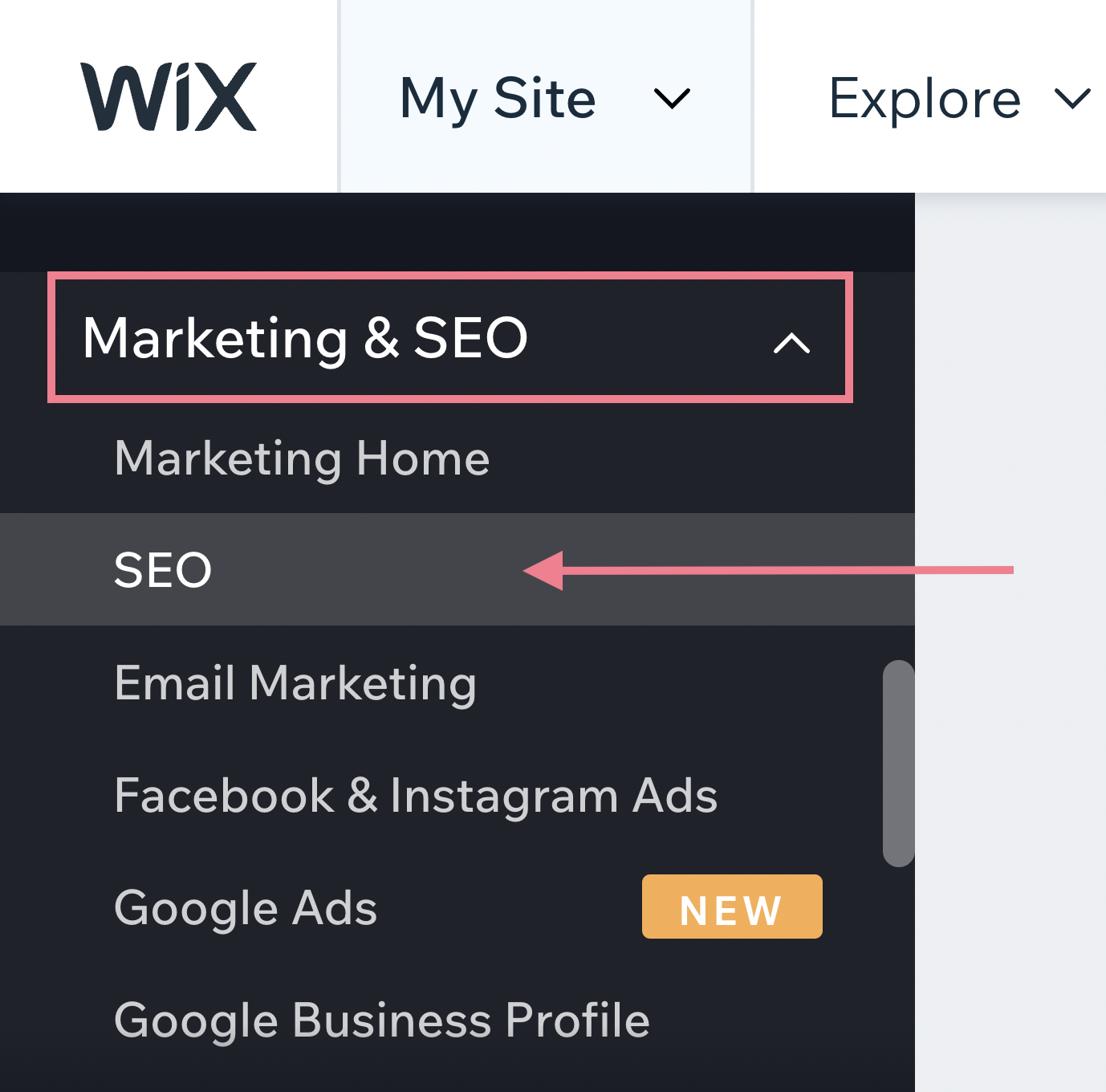
Scroll down to “Tools and settings.” Then, find where it says “SEO Setup Checklist” and select “Get Started” > “Start Now.”
Fill in some basic information about your website, location, and keywords.
Your checklist will look something like this:
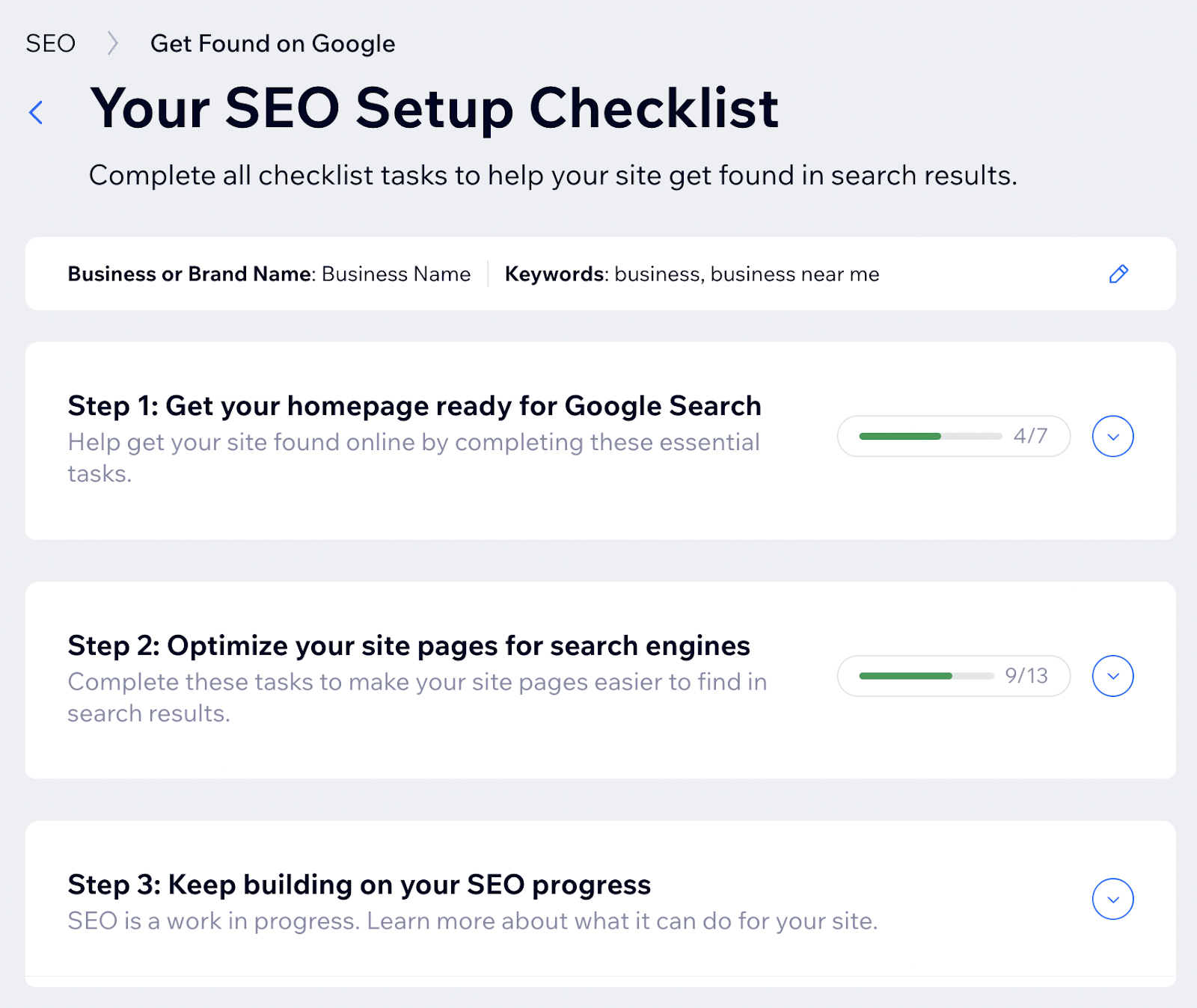
Click each item in the checklist to see detailed instructions.
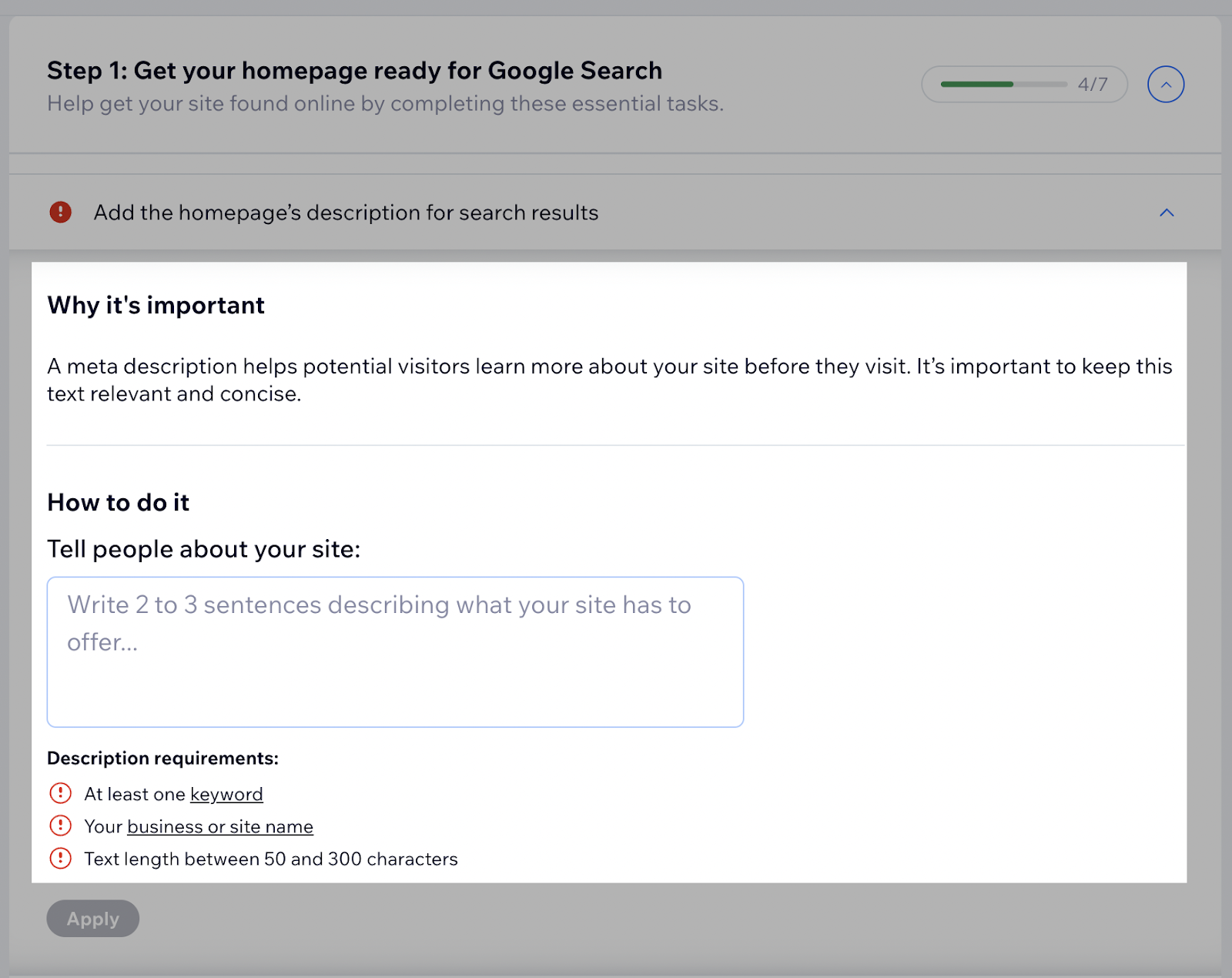
For example, selecting the “Add the homepage’s description for the search results” task from the checklist will populate these instructions:
2. Conduct Keyword Research
Keyword research is the process of identifying the search terms your ideal audience types into search engines.
It helps you to plan and optimize content more effectively.
With the Wix-Semrush integration, you can conduct keyword research without ever leaving the Wix platform.
To get started, go to the SEO Setup Checklist as you did in the previous step.
Click the pencil icon in the top right corner.
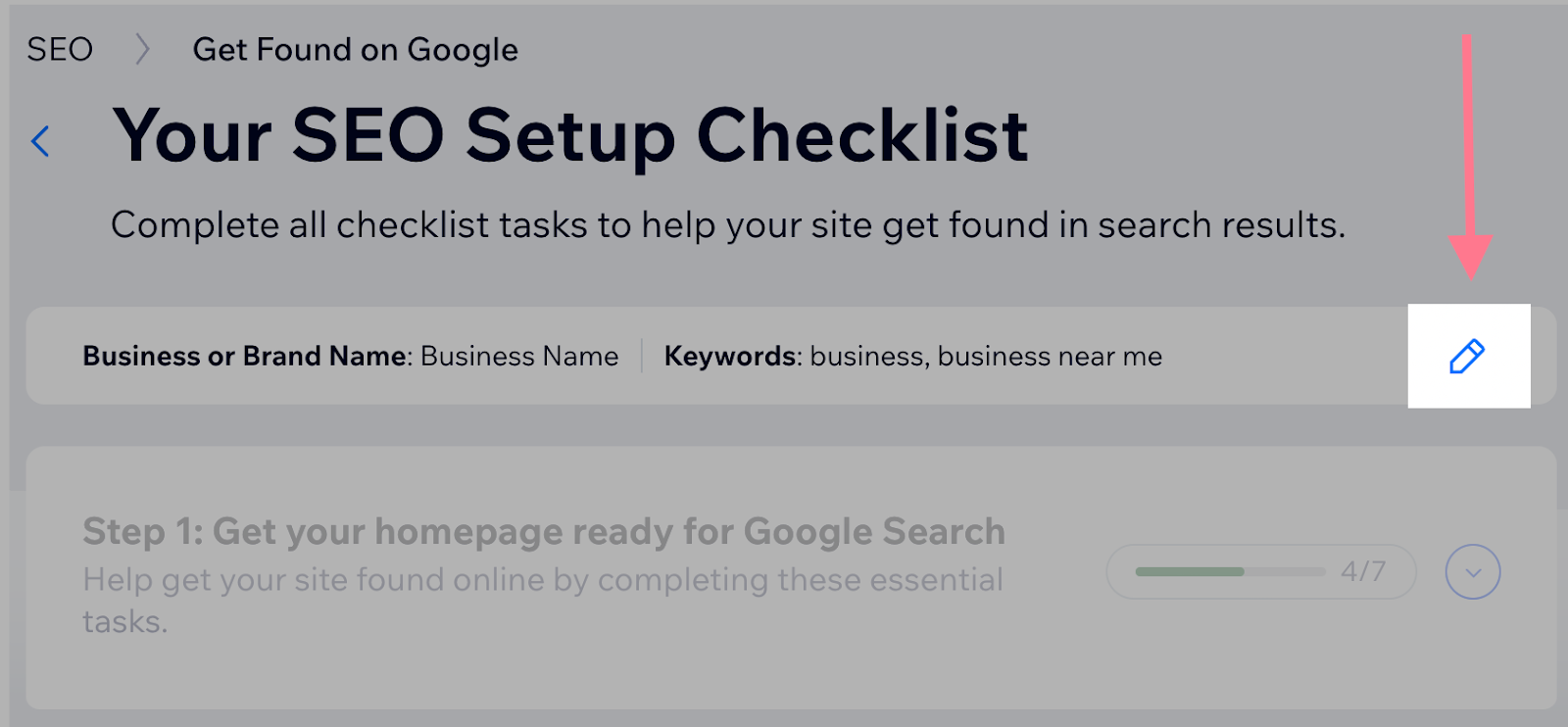
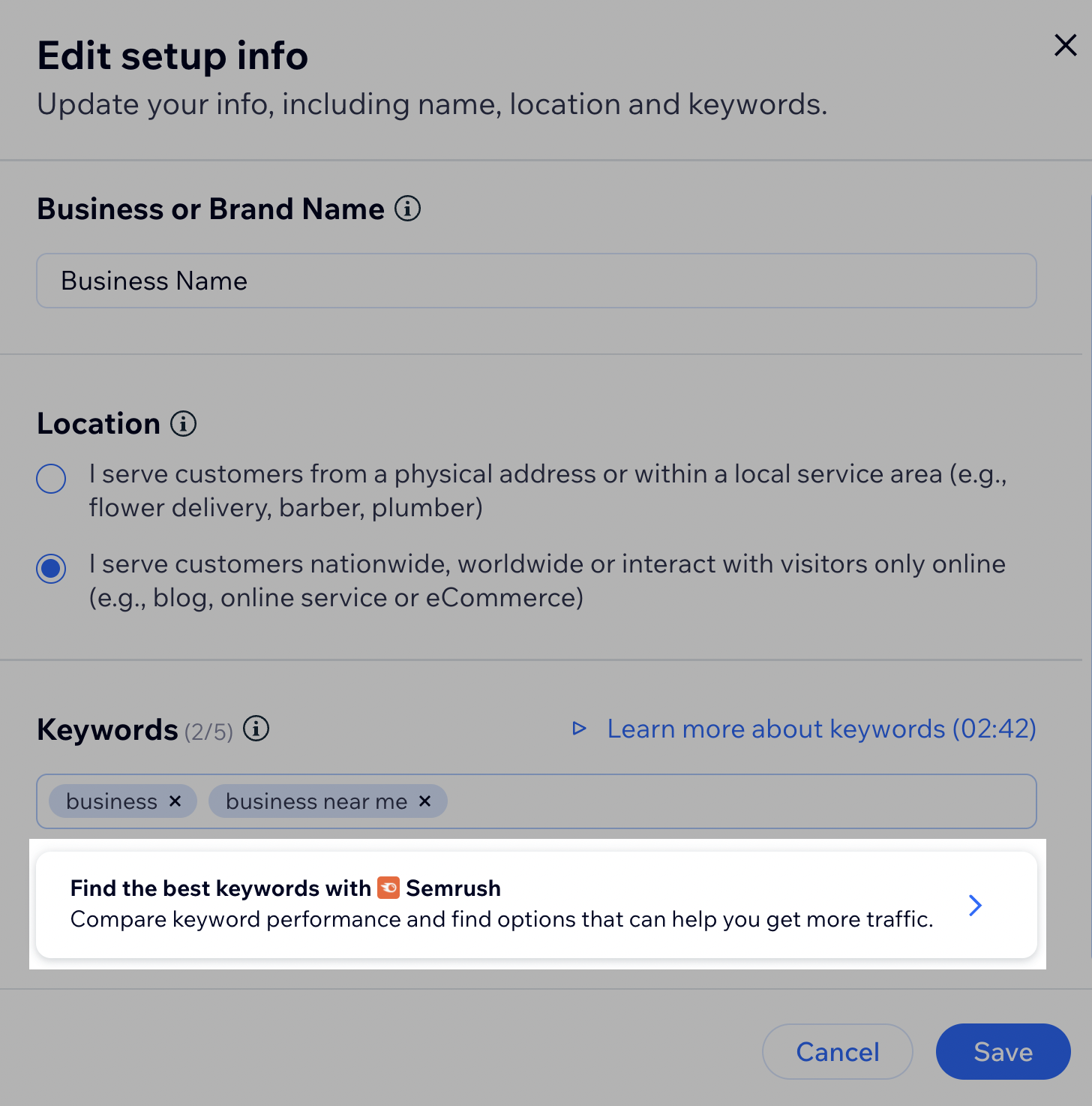
An “Edit setup info” window will open.
In the “Keywords” section at the bottom, click “Find the best keywords with Semrush.” Then, you can connect to your existing Semrush account. Or create a Semrush account for free.
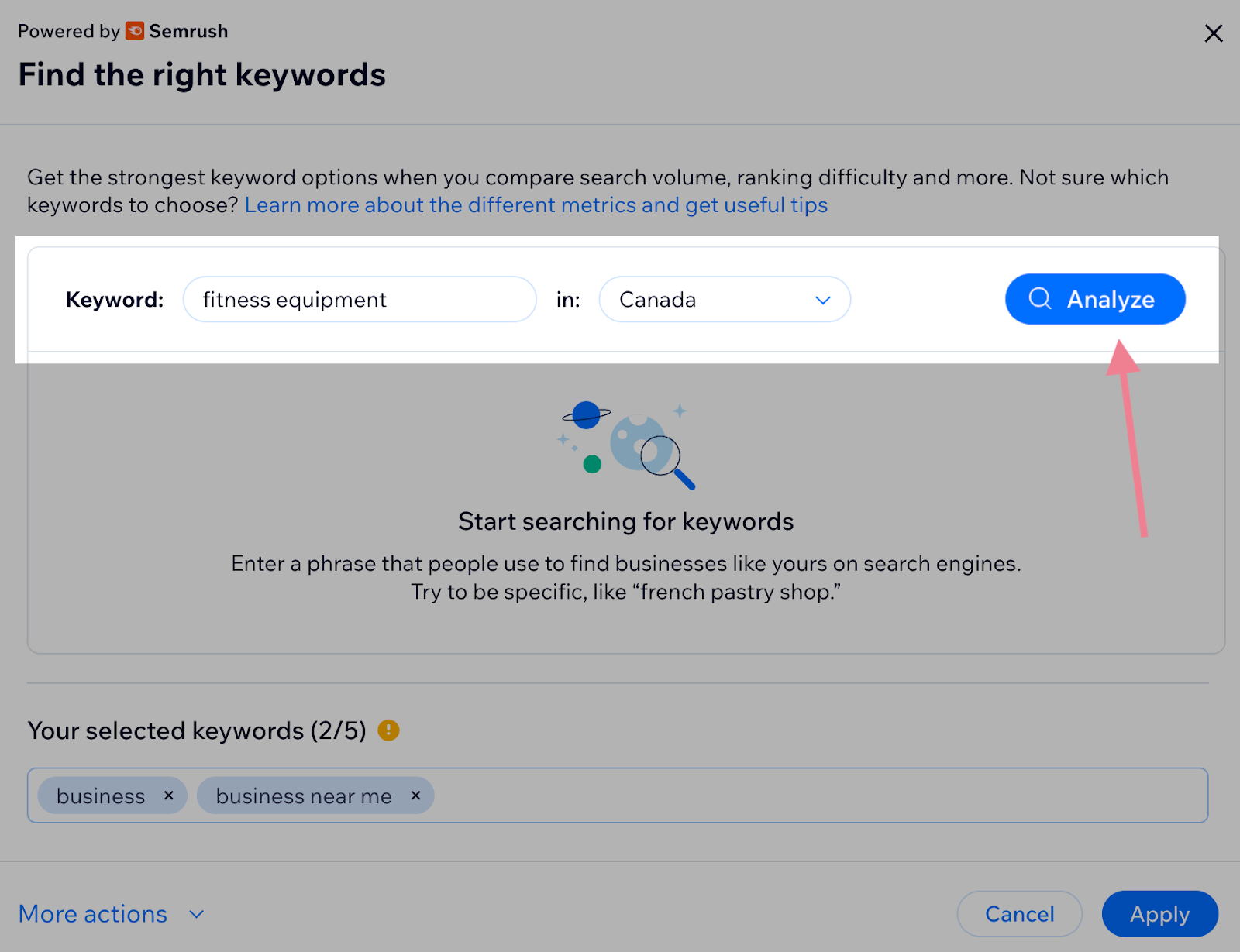
Select your target location and enter a keyword related to your business. Then, click “Analyze.”
The tool will provide a list of keyword options and four metrics for each:
- Volume: The average number of times the term is searched each month
- Trend: Search volume trend over the past 12 months
- Difficulty to rank: How much competition there is for the keyword
- Searcher intent: The general purpose behind the user’s search. There are four main search intent types: navigational, commercial, informational, and transactional.

Ideally, look for keywords with a high search volume, low ranking difficulty, and a search intent that fits how you plan to use that keyword.
The Wix-Semrush integration allows you to select up to five keywords to add to your personalized Wix SEO plan.

To take your keyword research to the next level, check out the Keyword Magic Tool in Semrush.
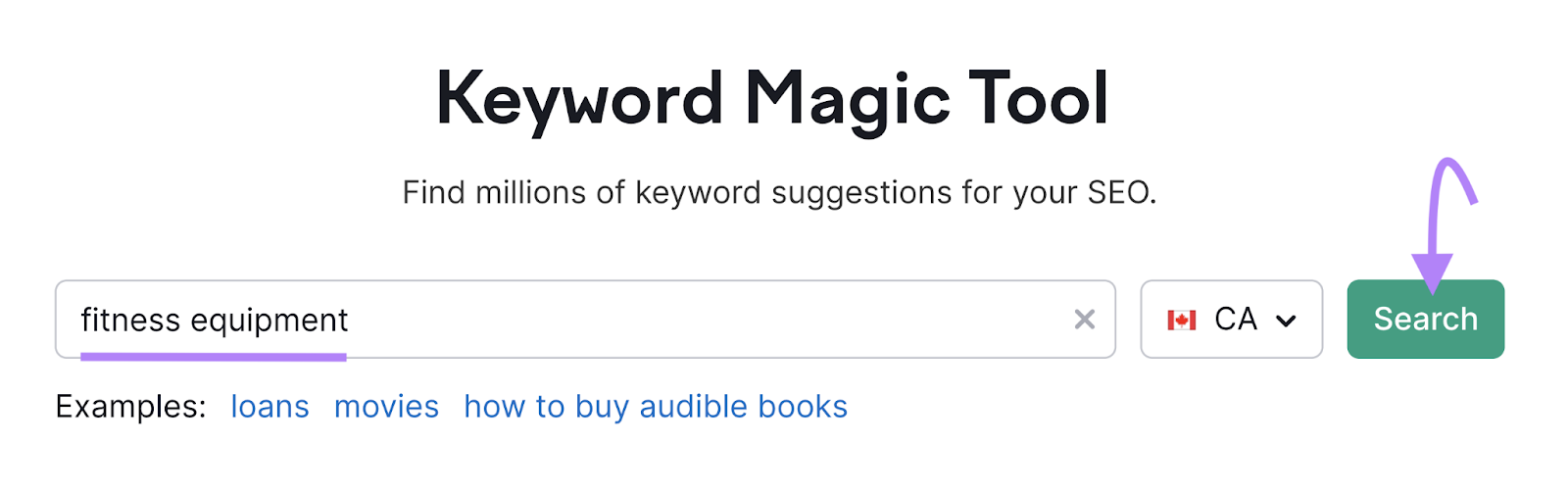
Simply enter a term to base your research around, choose your target country, and click “Search.”
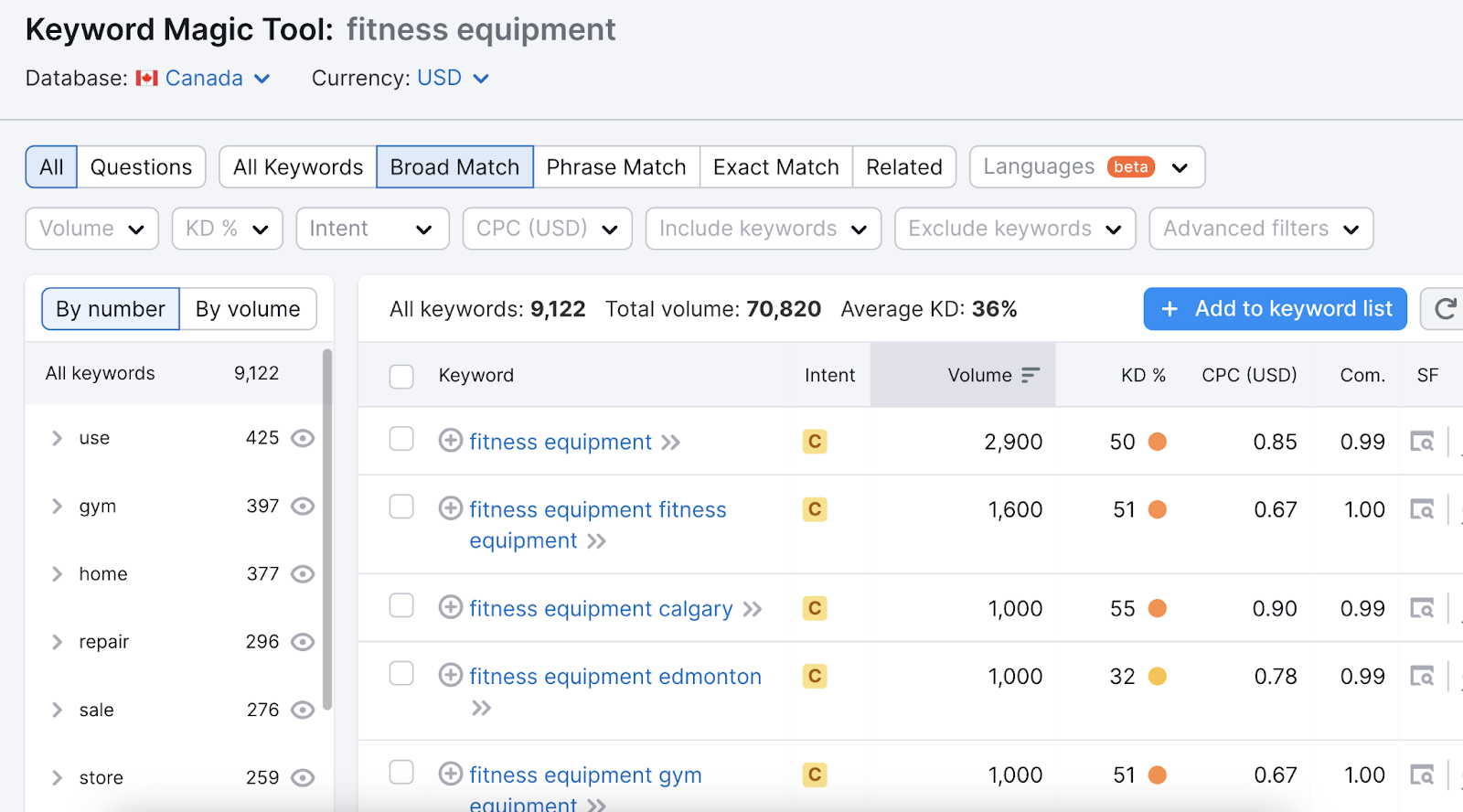
Then, analyze the keywords provided.
You can use various filters and sorting options to narrow your results.
With a free Semrush account, you can search up to 10 keywords per day in both Wix and the Keyword Magic Tool.
3. Connect to Google Search Console and Google Analytics
Google Search Console (GSC) monitors your site’s performance in Google Search and checks for technical issues. While Google Analytics 4 (GA4) tracks user behavior on your site.
Both free tools provide valuable insights into your site’s performance.
So, let’s learn how to connect them to your Wix website:
Connect Wix to Google Search Console
Create your GSC account if you haven’t already.
The next steps depend on whether you connected to GSC when following the SEO Setup Checklist.
If so, then you’ve already taken care of this.
If not, you’ll need to follow a few steps to connect to GSC manually.
You’ll start by entering your URL in the “URL prefix” module in Google Search Console. Then, click “Continue.”

Then, copy the meta tag from GSC, save it in your Wix settings, and complete the rest of the verification process in GSC.
Connect Wix to Google Analytics
To connect your Wix site to GA4, you’ll first need to create a Google Analytics account and copy your measurement ID.
In Wix, simply go to “Marketing & SEO” > “Marketing Integrations.” And click “Connect” beneath the Google Analytics section.

Then, follow the instructions to add your Measurement ID to complete the setup.
4. Create High-Quality Blog Posts
One of the most effective ways to grow your site’s organic traffic (unpaid search engine traffic) is to create a blog and consistently publish high-quality content on it.
Wix makes it easy to add blog posts to your site. But it takes time and effort to create high-quality content that appears high in search results.
You’ll need to come up with blog ideas that are relevant to your brand and target audience. Then, try to write content that’s the best of its kind.
Here are some tips for writing blog posts:
- Make sure your content is comprehensive, easy to read, and accurate
- Add value with unique insights, images, videos, data, etc.
- Optimize your blog posts for search engines and users
- Use subheadings, lists, and other formatting to break up big sections of text
- Never plagiarize. Ever.
There are many blogging tools that can help you come up with and execute post ideas.
For example, the Topic Finder within Semrush’s Content Toolkit provides relevant high-impact content ideas.

Then, it analyzes competing content using Semrush data and generates a detailed article outline.

You can then draft a full-length, SEO-friendly post using AI and refine it via an integrated AI chat.

The interconnected system makes it quick and easy to create high-quality blog posts that’s likely to perform well.
5. Optimize Your Title Tags and Meta Descriptions
Every page on your site needs a unique and optimized title tag and meta description. Here’s a brief overview of both:
- Title tag: Tells users and search engines what your page is about
- Meta description: Provides a more detailed description of your page’s content
Google may use both elements to create search engine results.
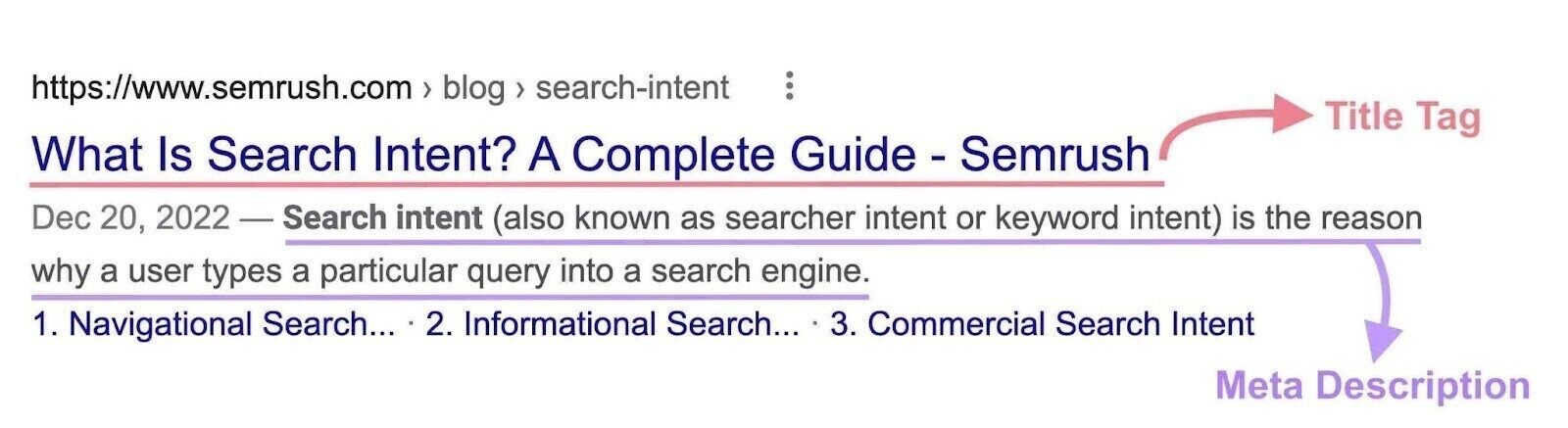
Here’s how to edit your title tags and meta descriptions in Wix:
In the editor’s left-hand menu, click the pages icon.
Find the page you want to edit in the list, click the three dots next to the page title, then select “SEO basics.”
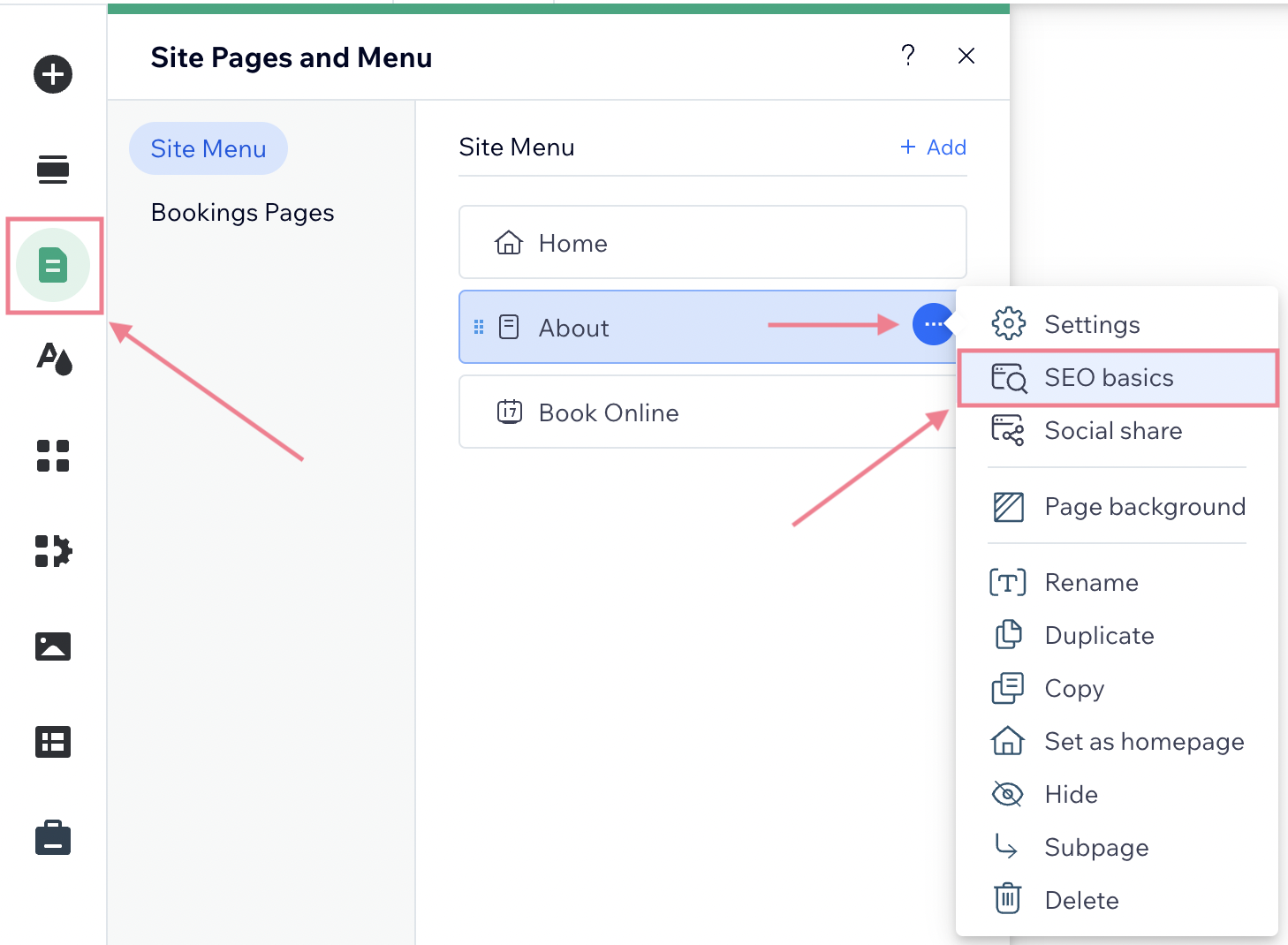
You’ll be able to edit your title tag and meta description here. And see a preview of your search result on Google.

Here are some tips for writing optimized title tags and meta descriptions:
- Keep your title tags short (about 50 to 60 characters)
- Keep your meta descriptions around 105 characters
- Include your target keyword in both elements
- Make your meta descriptions actionable by using active voice and a call to action (CTA)
6. Write User-friendly URL Slugs
The URL slug is the final part of a page’s URL address.
For example, the slug of this article is /wix-seo/.
You should always construct user-friendly and descriptive URL slugs for every page on your site. It helps Google understand the page’s content. And it’s also good for the user experience.
In Wix, you can do that easily in the same “SEO basics” settings where you’re editing the title tag and meta description (see the previous section).
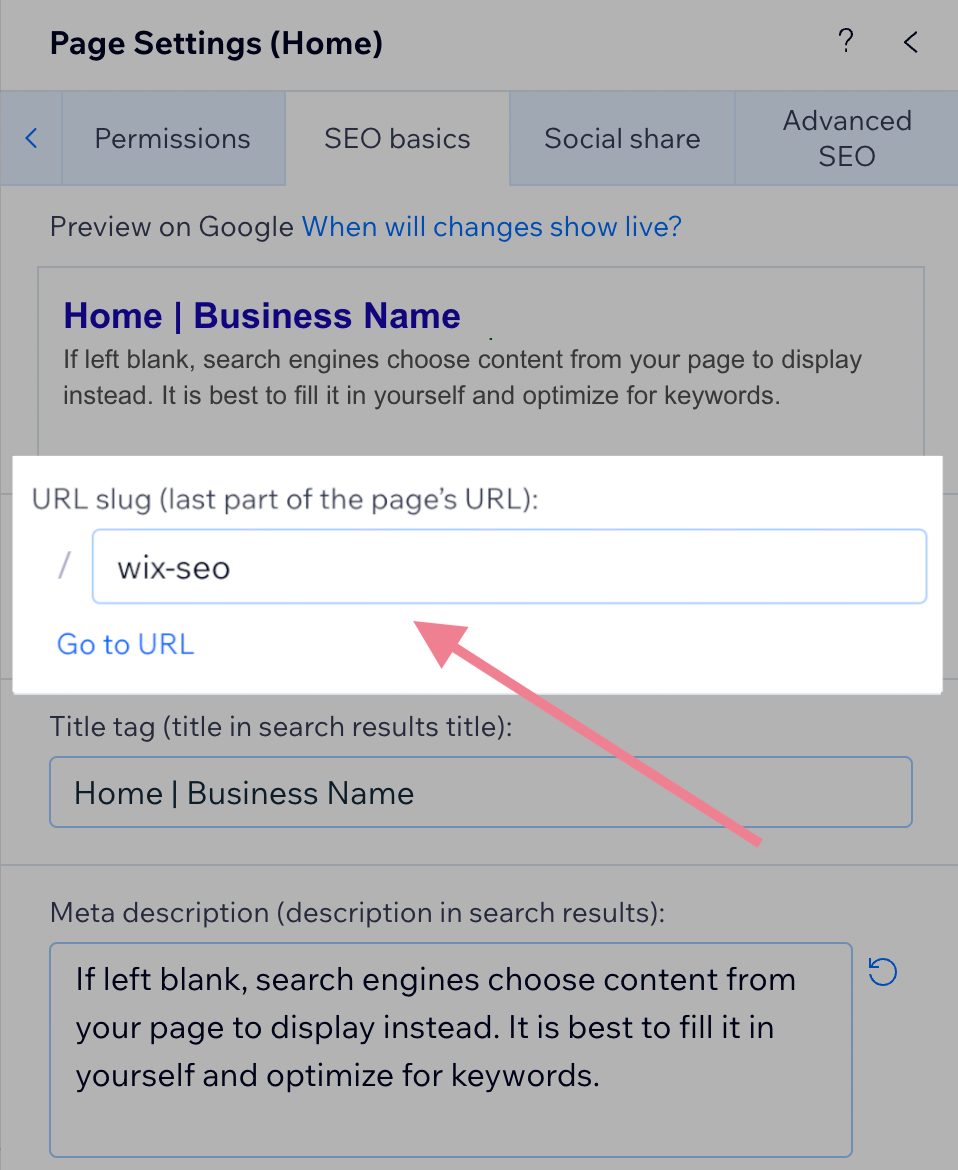
To write optimized URL slugs:
- Keep your URL slugs short and descriptive
- Use hyphens (-), not underscores (_)
- Use lowercase characters
- Avoid special characters
7. Add Internal Links
Internal links are links that point from one page on your site to another page on your site.
A strong internal linking strategy can increase the authority and topical relevance of your key pages. And improve their rankings in search engines.
Of course, internal links are also navigational elements that help users move through your site and find what they’re looking for.
Adding internal links to your content in Wix is simple.
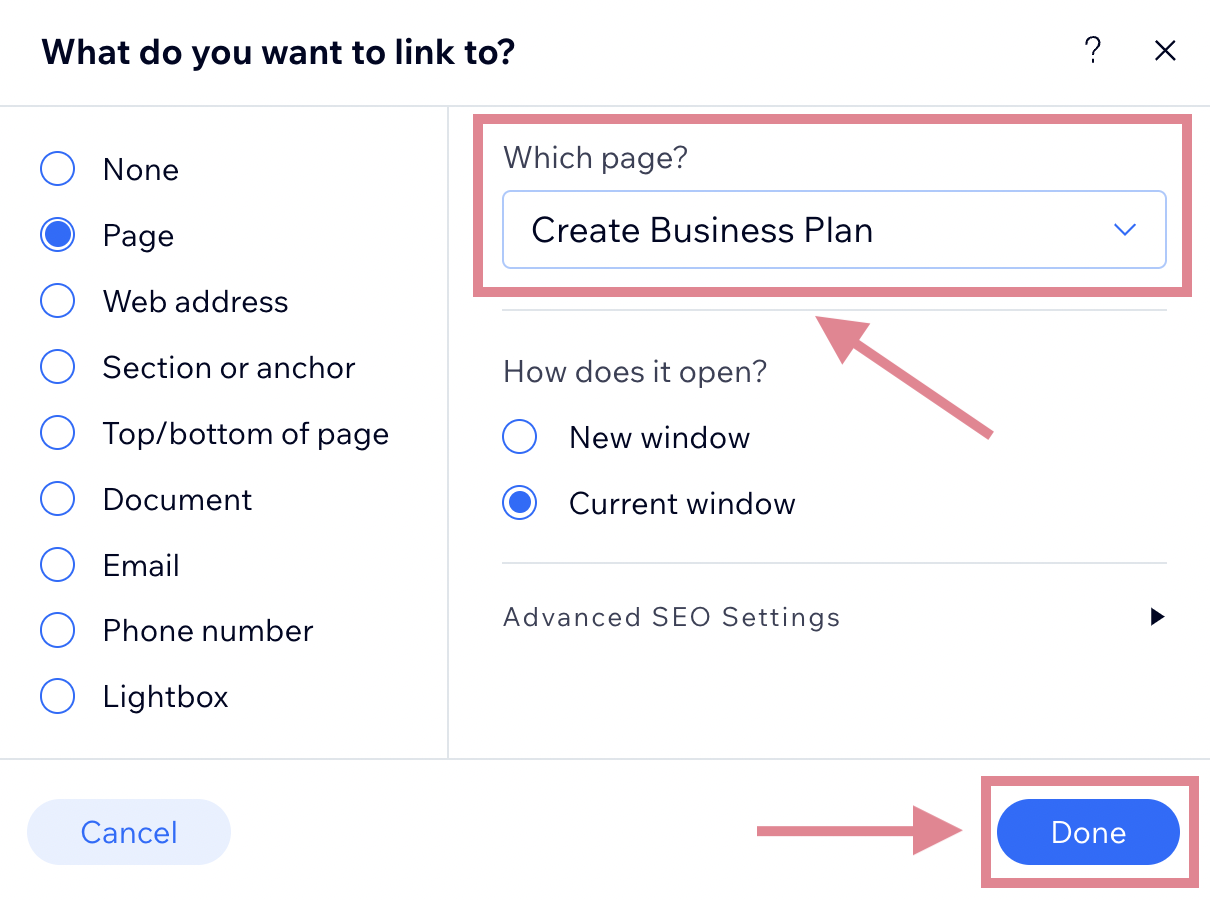
First, select the text you want to place the internal link on. And click the hyperlink icon.
That section of text is called anchor text. It provides context about the linked page to both users and search engines.
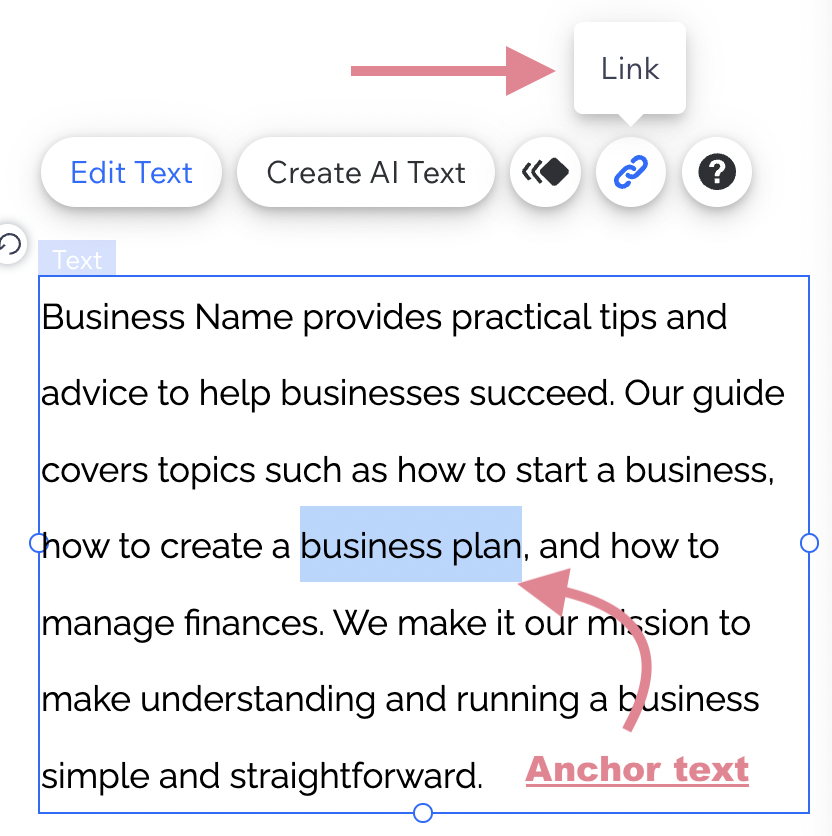
In the pop-up window, choose a page you want to link to using the “Which page?” selector. Then, hit “Done.”
Internal linking should be an integral part of your publishing process. Every time you create a new page, think about other relevant pages you could link to.
Once the new page is published, you can do the same in reverse: Add internal links to your new page from other published pages by updating them.
8. Optimize Your Site’s Images
Large images are a common reason for poor site speed.
That’s why image SEO is a crucial aspect of your Wix website’s optimization process.
For starters, use images that are sized appropriately. So, if you’re displaying an image at a maximum width of 800 pixels, use an 800-pixel-wide image—not a 2,400-pixel-wide image.
Additionally, you can use a tool like TinyPNG to compress your images before uploading them to Wix. This will reduce their size without losing too much quality.
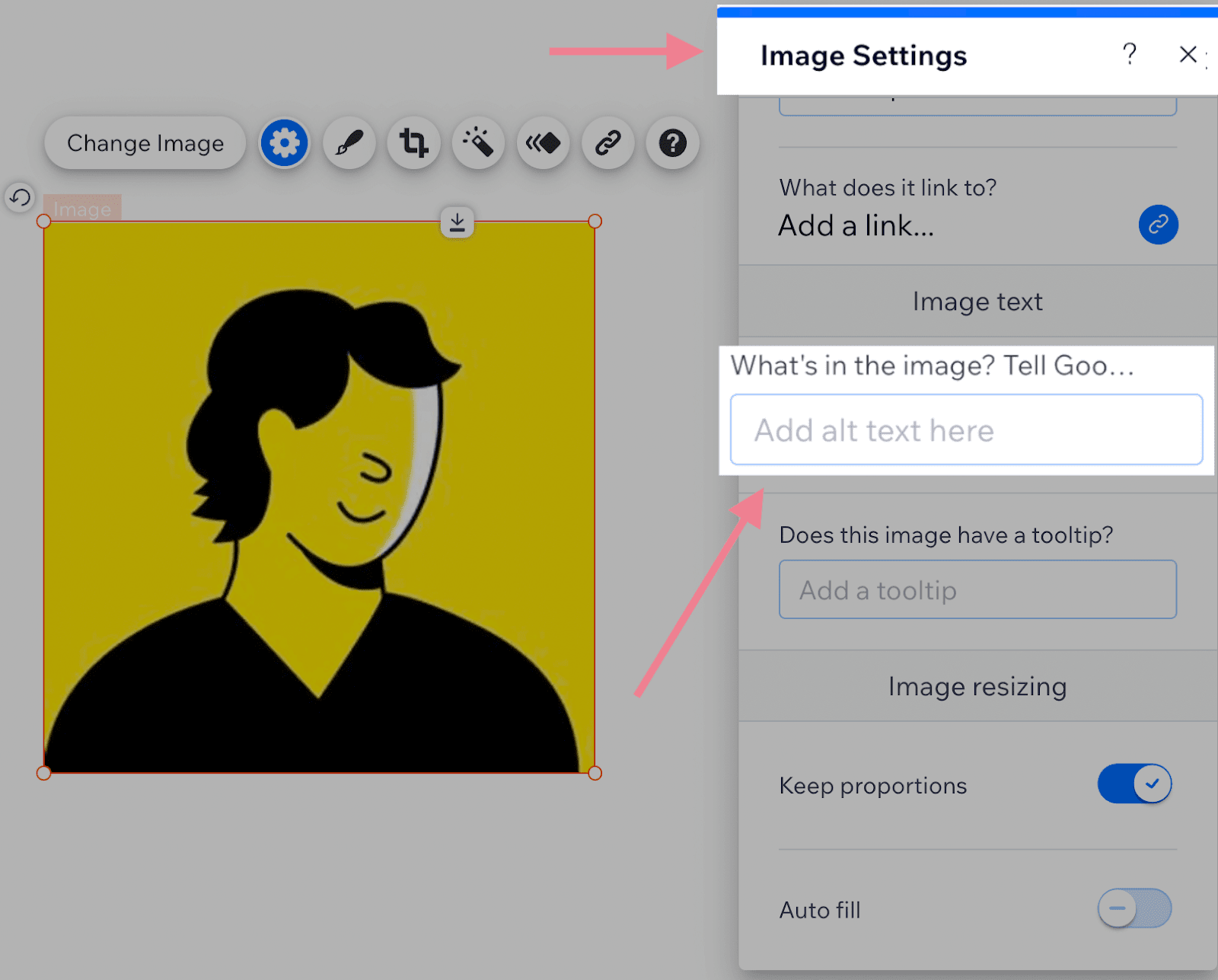
Also, add unique alt text (descriptions of the visuals) to images on your webpages. These help Google and those using screen readers understand what’s portrayed in the image.
Add alt text to an image in Wix by clicking on the image, selecting the gear icon, and adding a description to the “What’s in the image? Tell Google” box.
9. Build Backlinks to Your Site
Backlinks (links from other sites to your site) are a key SEO ranking factor.
Essentially, Google sees links from one website to another as votes of quality. Pages with a high number of quality backlinks tend to rank higher in search results.
That’s why link building tends to be so important.
Here are some link building tactics you can try:
- Convince creators who’ve mentioned your brand without linking to add a link
- Create content that naturally attracts links (link bait)
- Respond to expert source requests via platforms like Connectively
Here’s another great way to find opportunities: Take a look at competitors’ backlinks with Semrush’s Backlink Gap tool.
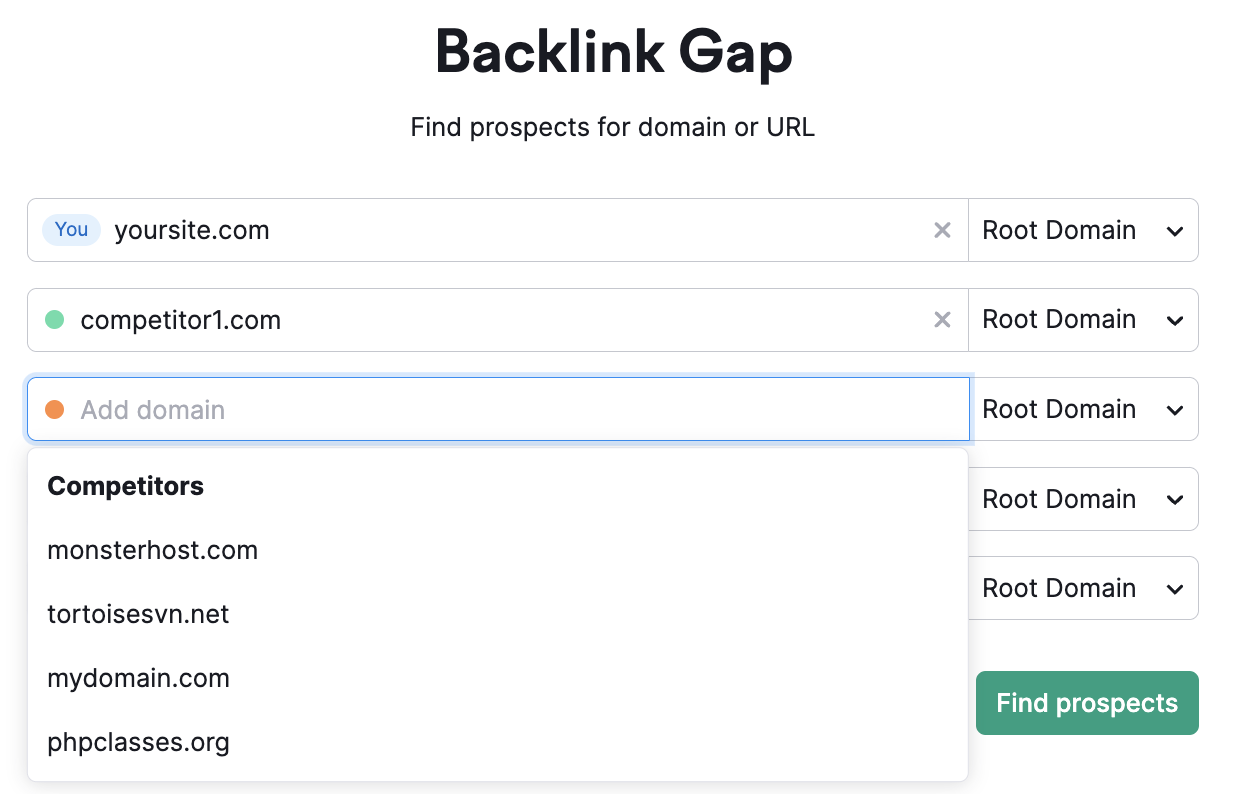
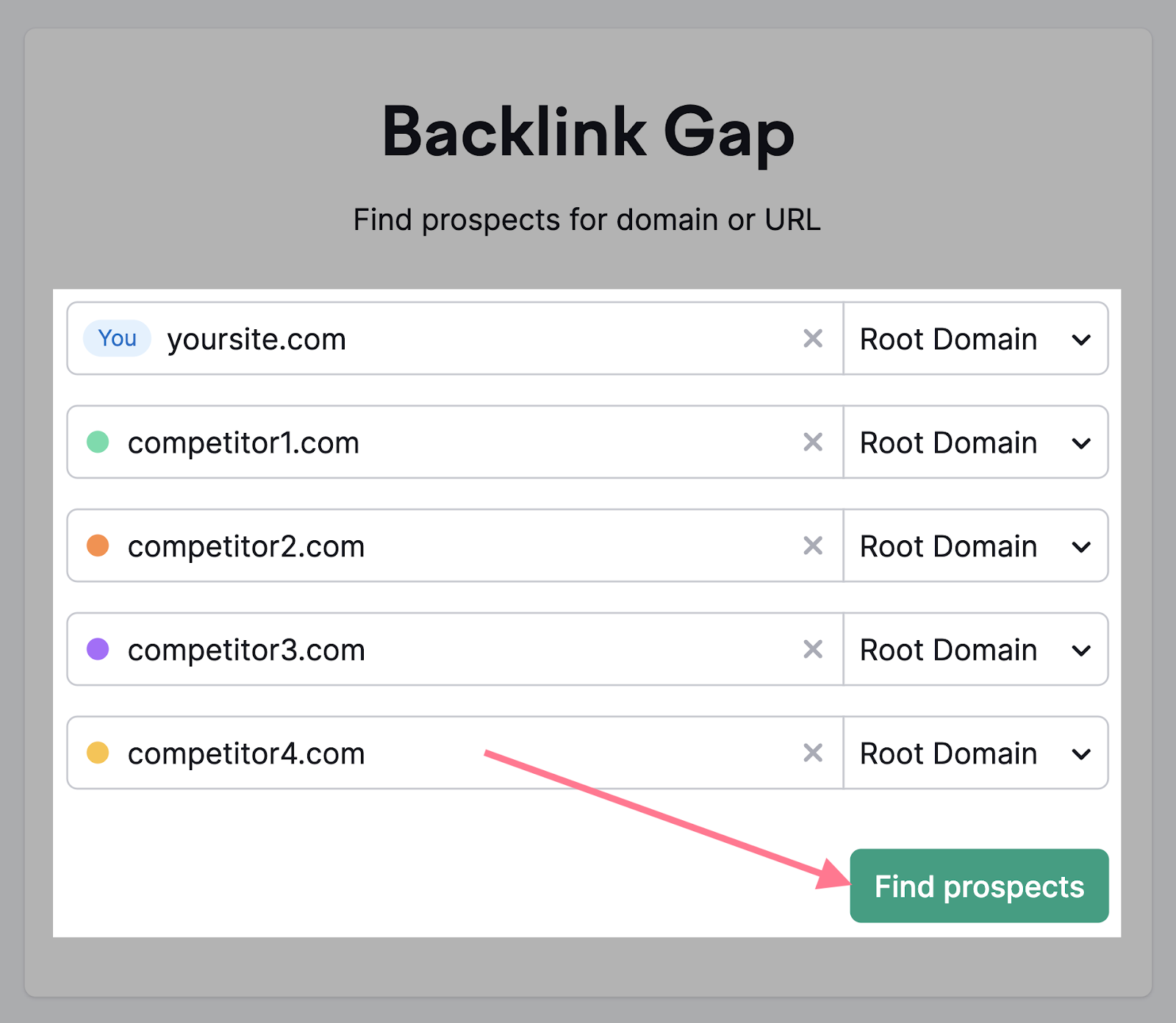
Start by entering your domain and the domains of your competitors.
You can enter your competitors manually or pick from suggestions the tool provides.
And click “Find prospects.”
In the “Best” tab, you’ll see a list of domains that link to all your competitors’ sites but not yours.
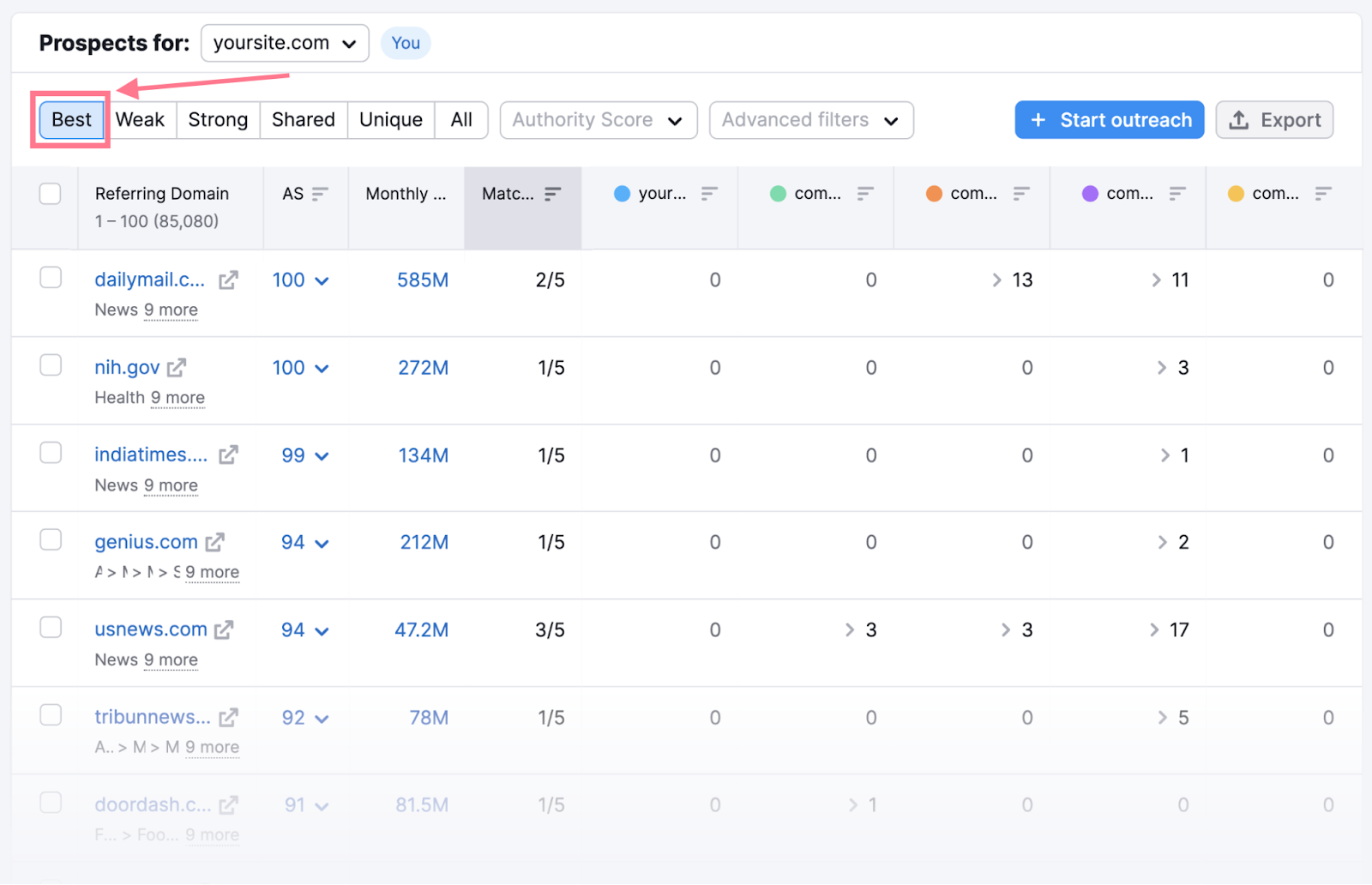
These can be prime opportunities to get backlinks.
Find the most relevant prospects and reach out to them to replicate your competitors’ backlinks.
Audit Your Wix Website
If you’re past the basics and want to learn more, conduct a complete SEO audit of your website.
A great place to start is Semrush’s Site Audit tool. It can score your Wix website’s health and provide a list of errors, warnings, and notices.
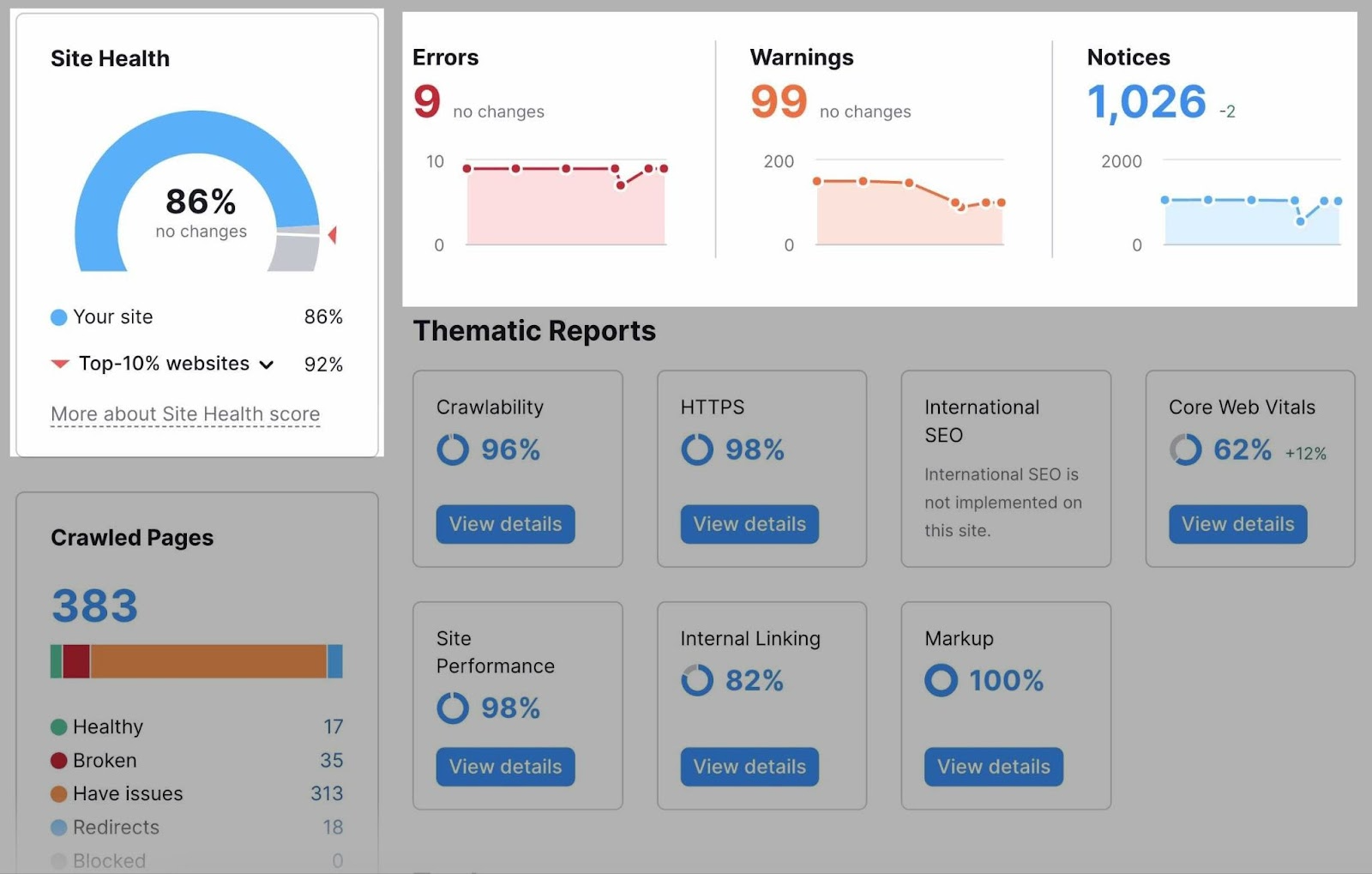
It also helps you understand the issues. And provides tips for fixing them.
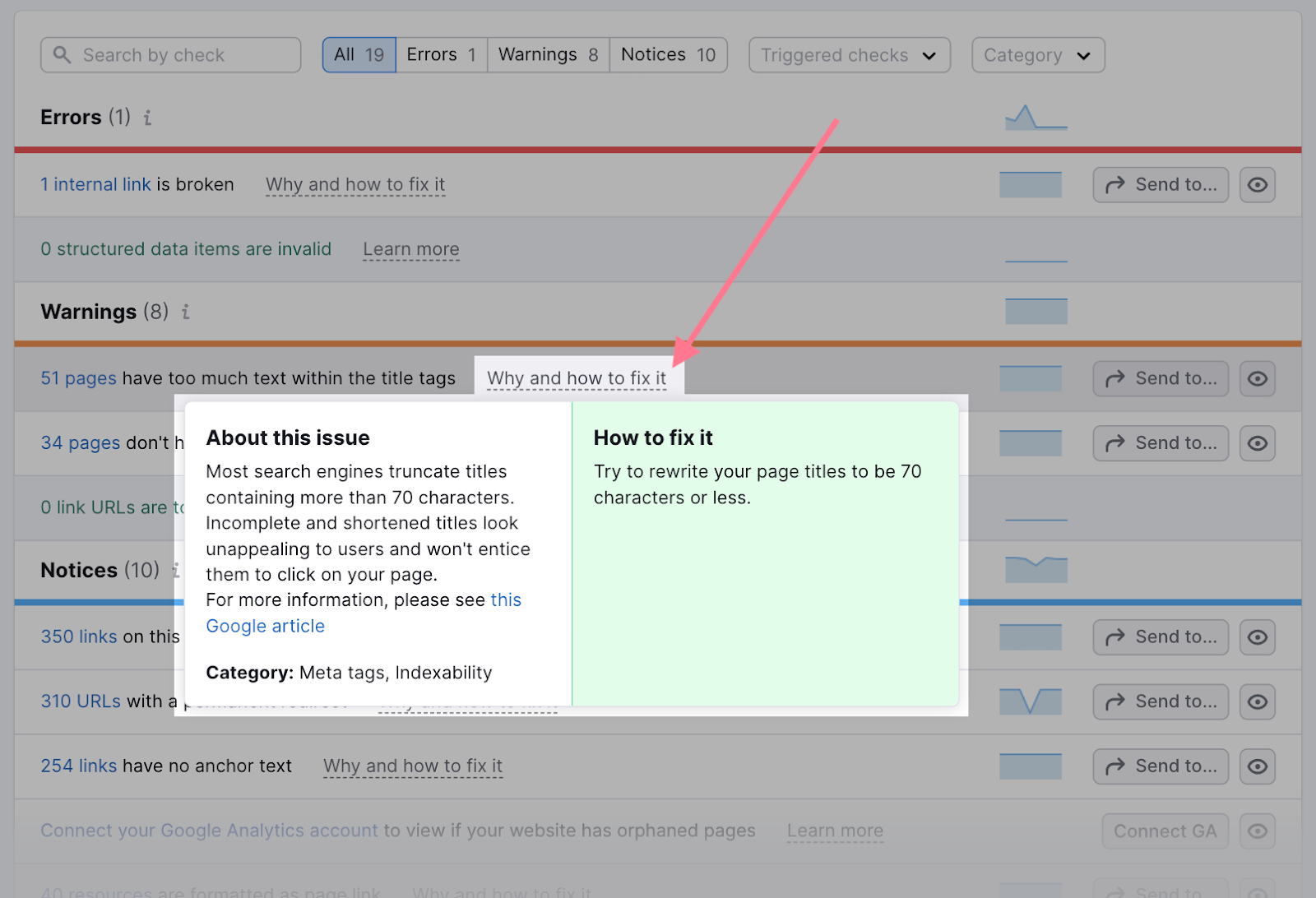
You can scan up to 100 URLs with your free Semrush account.
This post was updated in 2024. Excerpts from the original article by James Brockbank may remain.